Most mega menu plugins put a settings screen between you and your navigation. You pick options from dropdowns, save, and hop to the front end to see what changed. BePlus Visual Mega Nav takes a different route: it builds mega menus inside the block editor, so the layout you see while editing is the layout your visitors get.
That’s the pitch behind this Gutenberg-powered plugin from BePlus, the studio behind the Nextora block theme. Instead of a separate admin UI, you arrange columns, images, buttons, and headings as blocks. Here’s how it works, what it ships with, and where it fits in a block-first WordPress stack.
What BePlus Visual Mega Nav Does
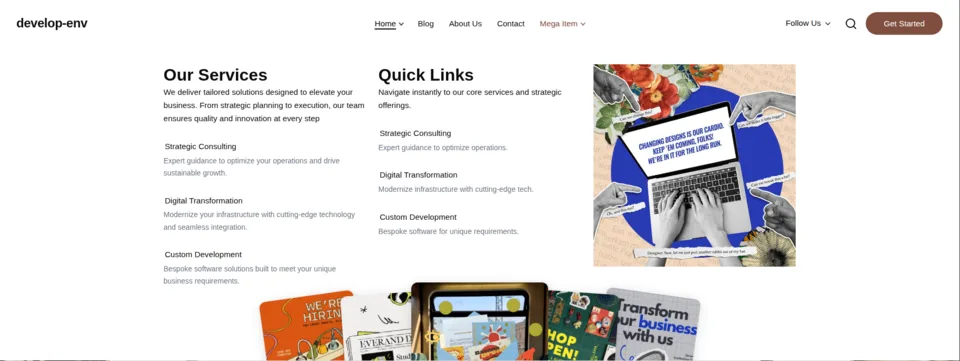
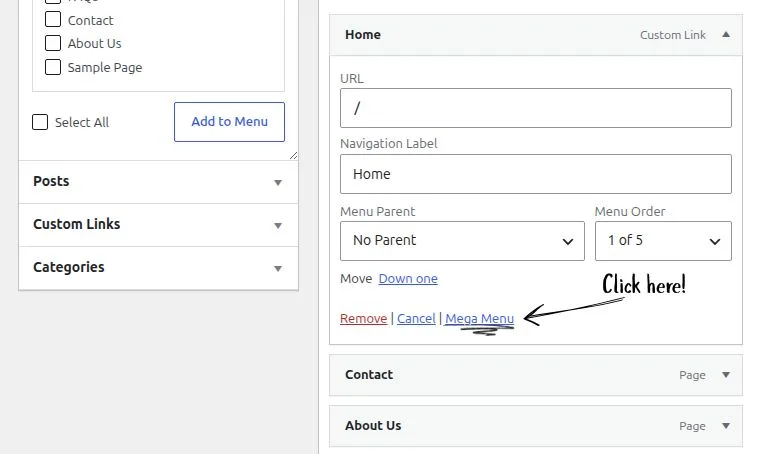
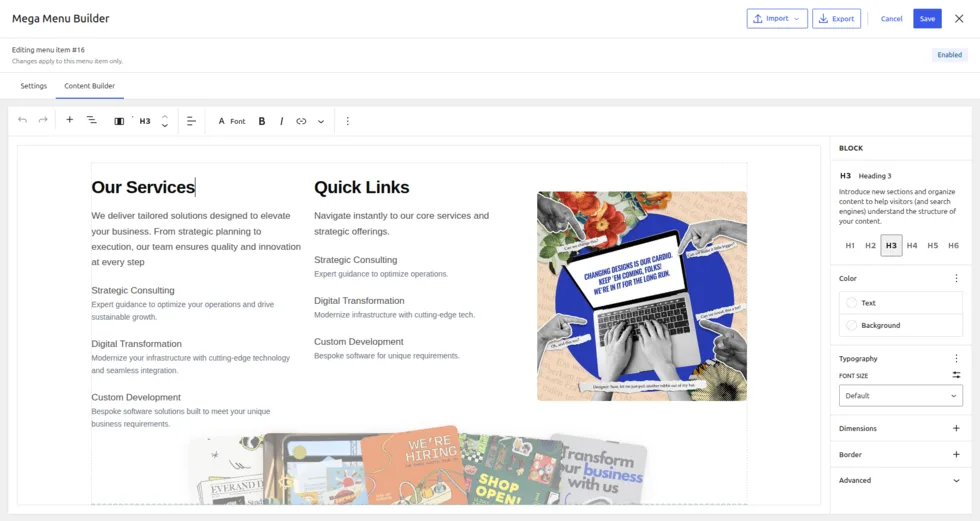
BePlus Visual Mega Nav adds a mega menu option to top-level items in your existing WordPress menus. Open Appearance → Menus, click the Mega Menu link on any depth-0 item, and toggle Enable Mega Menu. A Content Builder tab then opens the block editor, where you assemble the dropdown.
The plugin stays close to WordPress conventions under the hood. Settings and content are stored as nav_menu_item post meta, and the front end is rendered by a custom Walker with hover, focus, and keyboard interaction. Because it’s a Walker rather than a separate React runtime, the output plays well with core menus and most themes.
A Builder, Not a Settings Screen
The block editor is the point. You can drop in columns, a group, or a row, then fill them with headings, paragraphs, lists, images, buttons, and separators. Need a featured product? There are blocks for WooCommerce product cards and lists. A recent-posts rail? A Blog List block. A tabbed panel? Tab Container and Tab Panel blocks.
Per-item settings stay deliberately small: a width mode (full or custom), a background color, an animation, and an on/off toggle. The plugin doesn’t try to reimplement every CSS property as a checkbox, which keeps the admin side from turning into a control panel.
The Blocks You Get Out of the Box
The plugin registers 11 blocks. A few are structural: BePlus Header, BePlus Navigation, Menu Area, and Nav Toggle. The rest are content blocks meant to live inside a dropdown:
- Hero Artwork Dock — a content container with a decorative artwork layer and mouse-tracking cards
- Product Card and Product List — WooCommerce displays with a stacked-deck carousel and filtering by category, tag, featured, or on-sale status
- Blog List — a compact recent-posts list built for menus
- Quote — a testimonial carousel with word-by-word animation
- Tab Container and Tab Panel — tabbed content in vertical or horizontal layouts
Most sites will lean on a few of these. Product Card and Blog List are the ones that make a menu feel like a storefront or a magazine instead of a list of links.
Import, Export, and a Template Store
Starter layouts come from a template store of JSON files. Click Import in the modal header to browse built-in templates — Three Column Navigation and Featured + Links ship with the plugin — or upload your own JSON. Export saves the current design to the same format, so a menu can be reused across sites.
Templates are discovered from three locations in priority order: the plugin’s templates folder, the parent theme’s mega-menu-templates folder, then the child theme’s. That layering is the interesting part. It means the Nextora theme can ship its own menu templates, and a child theme can override them by filename without editing the plugin.
Accessibility and Extensibility
Accessibility comes built in: ARIA attributes, keyboard navigation, and focus trapping on the panels. The markup exposes CSS custom properties, so you can restyle menus from your theme without touching the plugin’s compiled CSS.
Developers get a small but useful API. Two REST endpoints serve templates (/wp-json/beplus-visual-mega-nav/v1/templates and /templates/{slug}), and filters like beplus_vmn_allowed_blocks and beplus_vmn_locations let you whitelist custom blocks or register your theme’s menu locations.
Requirements and Getting Started
You’ll need WordPress 6.0+ and PHP 8.0+. The plugin lives on GitHub at miketropi/beplus-visual-mega-nav. Clone it into wp-content/plugins, run composer install and npm install, then npm run build, and activate it. After that, head to Appearance → Menus and the Mega Menu link appears on top-level items. If you run into trouble, the FAQs page has answers, or you can get in touch.
Where It Fits in the BePlus Ecosystem
This plugin comes from the same team behind the Nextora block theme, and the two are built to work together. Nextora’s menu locations and templates are wired for this plugin, and the template-store priority system means child themes can ship brand-specific menus. If you’re building on Nextora or the wider BePlus catalog, this is the navigation layer that slots in beside it. You can grab it on WordPress.org or browse the rest of the catalog on BePlus Labs.
Verdict
BePlus Visual Mega Nav won’t replace a page builder’s menu system if you’re already committed to one. But if you want mega menus that live in the block editor, store cleanly as post meta, and render through core menu functions, it’s a focused, well-built option. For a site on the Nextora theme, or any block-first build, I’d reach for this before a heavier menu plugin.
It is currently available and free to download on WordPress.org
https://wordpress.org/plugins/beplus-visual-mega-nav/ 👈️
One response
Have you tried BePlus Visual Mega Nav yet? If so, share your thoughts immediately: Which block did you find most useful, and did you run into any difficulties using it? I’d love to hear your feedback! 👇