Building beautiful, professional WordPress pages from scratch takes time. Even with powerful block editors, deciding on layouts, spacing, and styling for each section can slow down your design workflow. That is why we built Nextora Cloud Templates — an instant, cloud-powered template library integrated directly into your WordPress dashboard and Gutenberg block editor.
With Nextora Cloud Templates, you get access to an ever-growing catalog of professionally designed pages, hero sections, galleries, and landing pages ready to import in just one click. In this guide, we will explore what the template library offers and how you can start using it on your site today.
What Are Nextora Cloud Templates?
Nextora Cloud Templates connects your WordPress website directly to the official Nextora Cloud catalog. Instead of downloading zip files or copying and pasting block code from external websites, you can browse, preview, and insert high-quality block designs seamlessly inside WordPress.
Everything is built natively with WordPress blocks and designed to match the Nextora WordPress theme styling, global fonts, and color palettes automatically upon import.
Two Convenient Ways to Browse and Import
Nextora Cloud Templates gives you complete flexibility whether you are setting up a brand-new page or enhancing an existing one.
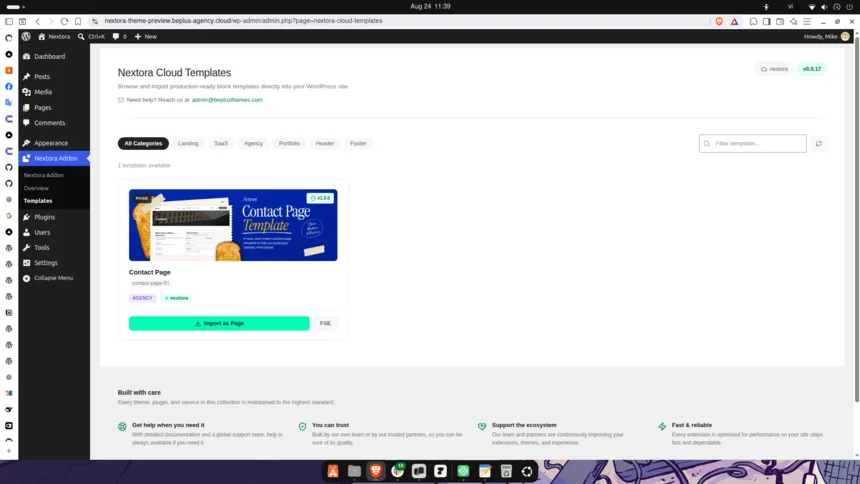
1. Full Page Importer (Nextora Addon → Templates)
Want to launch a full landing page or homepage quickly? Head to Nextora Addon > Templates in your WordPress admin menu. Here, you can:
- Filter by Category: Browse templates by Landing, SaaS, Agency, Portfolio, Header, Footer, and more.
- One-Click Page Import: Click “Import as Page” to create a new draft page complete with all blocks and the full-width layout pre-configured.
- FSE Block Template Support: Import directly into your site editor as Full Site Editing (FSE) block templates.
- Automatic Theme Synchronization: Browse both your active child theme layouts and Nextora parent theme templates seamlessly.
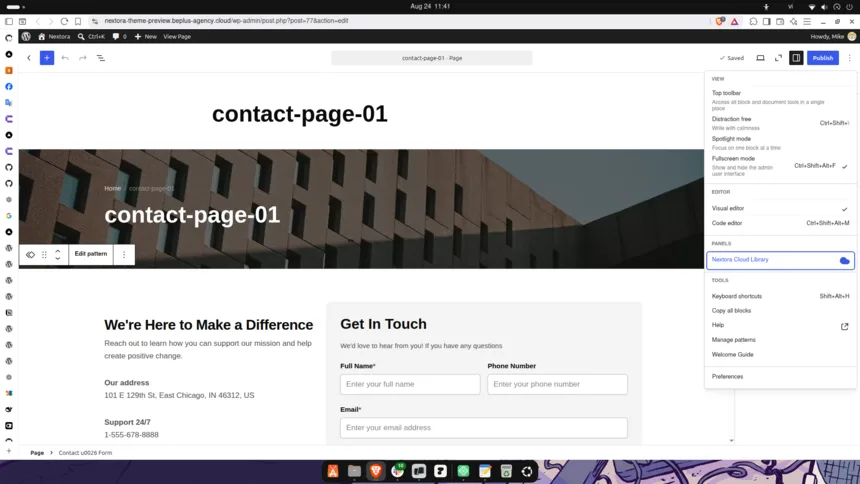
2. Instant Canvas Inserter Inside Gutenberg
If you are already writing or designing a page in the Gutenberg Block Editor, there is no need to leave the editor screen:
- Click the Nextora Cloud Library option in the editor toolbar.
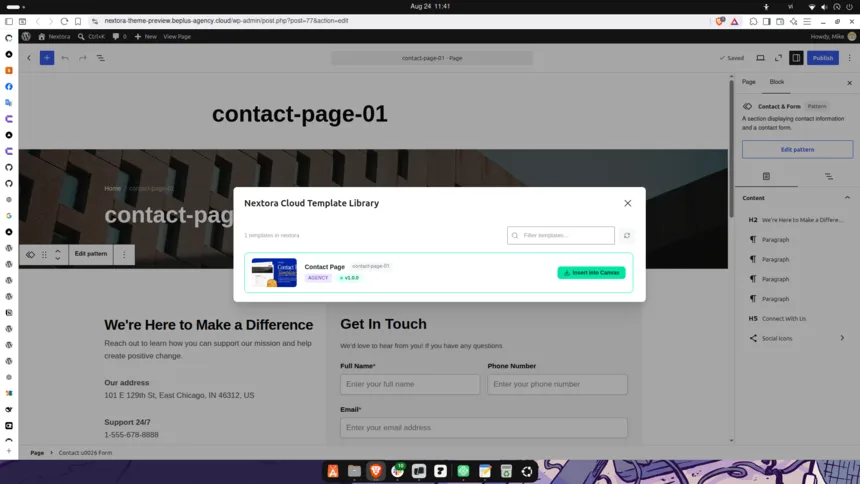
- Browse the clean, list-style catalog and search for sections or designs you need.
- Click Insert into Canvas to drop the template directly into your active page at your cursor position.
Key Benefits for Site Creators
- Always Up to Date: New templates added to Nextora Cloud appear immediately in your dashboard without needing theme updates.
- 100% Native Blocks: No bloated third-party page builders or heavy scripts. Everything uses standard WordPress blocks for maximum speed and clean code.
- Adaptive Design Tokens: Imported templates automatically inherit your active theme’s colors, typography presets, and spacing rules.
- Effortless Compatibility: Built-in version checking ensures every template works smoothly with your current Nextora theme version.
How to Get Started
Getting started takes less than a minute:
- Ensure you have the latest version of the Nextora Theme active on your site.
- Navigate to Nextora Addon > Templates in your WordPress dashboard, or open any page in the Block Editor and click Nextora Cloud Library.
- Pick any template and click import — your new design is ready to customize immediately!
Summary
Nextora Cloud Templates bridges the gap between pre-designed inspiration and custom block development. Explore the template library today and build faster, more cohesive WordPress websites with zero friction.